In the digital age, where privacy is paramount, Virtual Private Networks (VPNs) have become essential tools for safeguarding online activities. With an array of options available, finding the best free VPN for iPhone can be a daunting task. This comprehensive guide explores the top free VPNs for iPhone, evaluating their features, performance, and user-friendliness.
I. Understanding the Need for a VPN on iPhone:
A. Privacy Concerns on Mobile Devices:
iPhones, like any other mobile device, are susceptible to privacy risks, especially when connected to public Wi-Fi networks. VPNs serve as a shield against potential threats by encrypting data and concealing the user’s IP address.
B. Geo-restrictions and Content Access:
Many users seek VPNs to overcome geo-restrictions and access content unavailable in their region. The right VPN can provide access to region-specific content and services, expanding the digital experience for iPhone users.
II. Criteria for Evaluating Free VPNs for iPhone:
A. User Interface:
An intuitive and user-friendly interface is crucial for a positive VPN experience on iPhone. The best free VPNs offer easy navigation and seamless connectivity.
B. Performance and Speed:
A VPN’s impact on internet speed is a critical consideration. The best services maintain fast connection speeds, ensuring a smooth online experience for iPhone users.
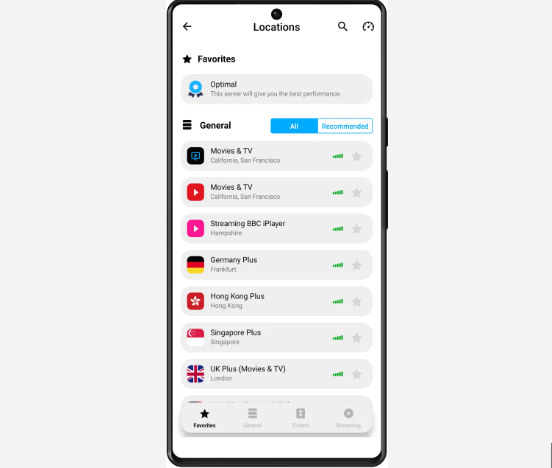
C. Server Locations:
The number and distribution of servers impact the VPN’s ability to bypass geo-restrictions. A diverse server network provides users with more options for secure and private connections.
D. Privacy and Security Features:
Robust encryption protocols, a strict no-logs policy, and additional security features contribute to the overall effectiveness of a VPN in ensuring user privacy and data security.
III. Top Free VPNs for iPhone:
A. ProtonVPN:
- Features:
ProtonVPN offers unlimited bandwidth with strong encryption. It has a user-friendly interface and a strict no-logs policy. - Performance:
While the server selection is limited in the free version, ProtonVPN provides a reliable and secure connection, making it suitable for everyday use.
B. Windscribe:
- Features:
Windscribe provides 10 GB of monthly data, a user-friendly app, and supports strong encryption. It also includes ad and malware blocking features. - Performance:
With a diverse server network, Windscribe delivers good performance, making it a solid choice for users with moderate data usage.
C. TunnelBear:
- Features:
TunnelBear boasts a friendly interface with a data limit of 500 MB per month. Users can increase this limit to 1.5 GB by tweeting about the service. - Performance:
While the data limit is restrictive, TunnelBear offers strong security features, making it suitable for light users.
D. Hotspot Shield:
- Features:
Hotspot Shield provides 500 MB of daily data with military-grade encryption. It includes additional features like malware protection. - Performance:
Known for its speed, Hotspot Shield offers a reliable connection, making it suitable for users looking for both security and performance.
E. Hide.me:
- Features:
Hide.me offers 10 GB of monthly data and supports various VPN protocols. It has a straightforward interface and a strict no-logs policy. - Performance:
With servers in multiple locations, Hide.me provides reliable performance for users seeking a balance between privacy and speed.
IV. Tips for Using Free VPNs on iPhone:
A. Regularly Update the VPN App:
Keep the VPN app updated to benefit from security patches and improved features.
B. Understand Limitations:
Recognize the limitations of free VPNs, such as data caps and server restrictions, and choose a service that aligns with your needs.
C. Optimize Security Settings:
Explore the VPN app’s settings to ensure you are maximizing the available security features.
Setting up a VPN on your iPhone is a straightforward process, and iOS provides built-in support for various VPN protocols. Here’s a step-by-step guide on how to configure VPN settings on your iPhone:
Setting up a VPN on an iPhone
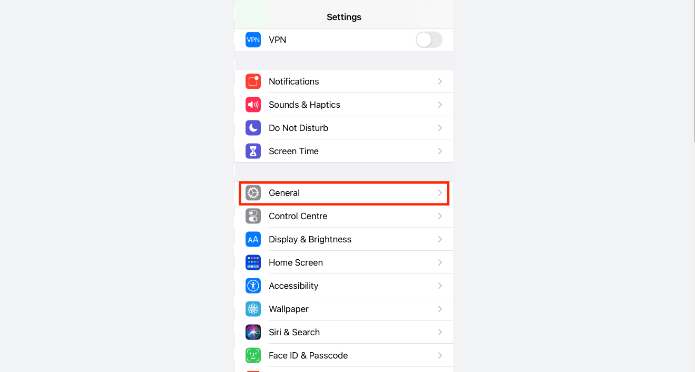
- Open Settings:
Open the “Settings” app on your iPhone. It’s represented by a gear icon and is usually found on the home screen. - Navigate to VPN Settings:
Scroll down and tap on “General” to access general settings. From there, tap on “VPN” to enter the VPN settings. - Add VPN Configuration:
In the VPN settings, tap on “Add VPN Configuration” to create a new VPN profile. - Choose VPN Type:
Select the type of VPN you are using. iOS supports various VPN protocols, including IKEv2, IPSec, and L2TP. Your VPN service provider will specify the appropriate protocol to use. - Enter VPN Configuration Details:
Fill in the required information for your VPN configuration. This typically includes:- Type: Select the VPN type (IKEv2, IPSec, L2TP).
- Description: A name for your VPN connection.
- Server: The address of the VPN server provided by your VPN service.
- Remote ID: Additional information provided by your VPN service, often the server’s address.
- Local ID: This field is optional and might not be required by all VPN services.
- User Authentication: Enter your VPN username and password.
- Save Configuration:
After entering the details, tap on “Done” or “Save” to save your VPN configuration. - Connect to VPN:
Once your VPN configuration is saved, you can now connect to the VPN. Toggle the switch next to the VPN configuration you just created. You might be prompted to enter your username and password. - VPN Connection Established:
Once connected, you’ll see a VPN icon in the status bar at the top of your screen, indicating that the VPN connection is active.
Additional Tips:
- VPN Settings in Control Center:
You can also access VPN controls from the Control Center. Swipe down from the top-right corner of the screen (on iPhone X and newer) or swipe up from the bottom of the screen (on iPhone 8 and earlier). Tap and hold the network settings card, then tap on the VPN name to connect or disconnect. - Always-On VPN:
Some VPN protocols support an “Always-On” feature. This ensures that your iPhone automatically connects to the VPN when you connect to the internet. Check with your VPN provider if this feature is supported. - Editing or Removing VPN Configurations:
To edit or remove a VPN configuration, go back to the VPN settings in the “Settings” app. Tap on the VPN configuration you want to edit or remove, and you’ll find options to make changes or delete the configuration.
Remember, the exact steps and available options might vary slightly depending on your iOS version and the VPN service you are using. Always refer to your VPN provider’s documentation for specific details related to their service.
Conclusion:
In conclusion, finding the best free VPN for iPhone involves considering various factors, including user interface, performance, and security features. Each VPN mentioned in this guide has its unique strengths, catering to different user preferences. By understanding your specific needs and priorities, you can choose the free VPN for iPhone that aligns with your desire for enhanced privacy and secure online experiences. Whether you’re overcoming geo-restrictions or safeguarding your data on public Wi-Fi, the right free VPN can be a valuable asset in navigating the digital world with confidence and peace of mind.